
Tech Tip: How to Customize Button Icon
PRODUCT: Qodly Studio | VERSION: 20 R | PLATFORM: Mac & Win
Published On: November 6, 2025
When adding a button component to a page, consider giving the button an icon to let users more easily identify its function. For example, suppose the user can draft an email on the page, and there is a “Send” email button, along with various other buttons. It would be useful to add an icon to the button to let the user quickly identify it as the “Send” button. To do this, first select the button component and, under Properties, choose an Icon Position that is not the default “hidden”.
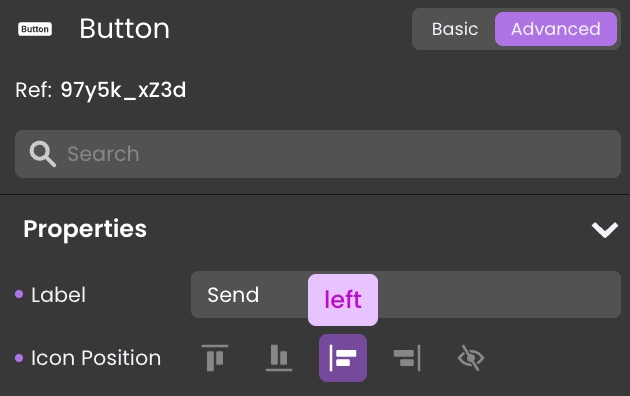

A default icon will appear next to the button text. The icon can be customized by clicking the Icon component inside the button, and then, under Properties, clicking “Select Icon”.
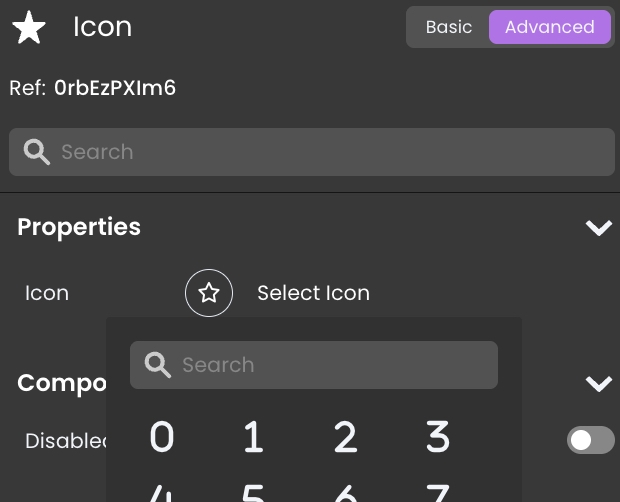
A custom icon can then be searched for and selected amongst a wide range of icons in the dropdown.

A default icon will appear next to the button text. The icon can be customized by clicking the Icon component inside the button, and then, under Properties, clicking “Select Icon”.
A custom icon can then be searched for and selected amongst a wide range of icons in the dropdown.