
Tech Tip: How to Add a Date Picker to a Page
PRODUCT: Qodly Studio | VERSION: 21 | PLATFORM: Mac & Win
Published On: January 20, 2026
The basic components in Qodly Studio have such a wide range of capabilities that it could be easy to miss some handy features. One feature is a built-in date picker. To add a date picker to a page, drag-and-drop the Text Input component to the desired location on the page. Then, select the Input box and, in its Properties, change the Type to “date”.
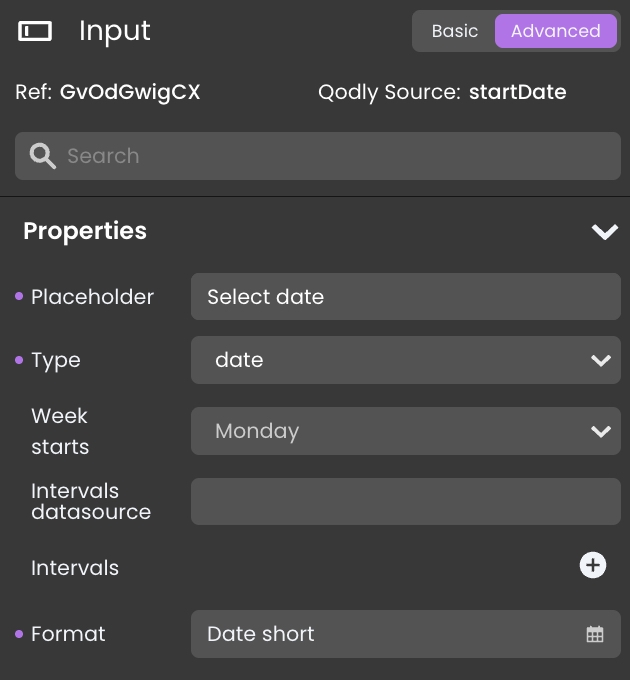
Now when the user clicks into the input box, they will be able to pick a date from a pop-up calendar. This is a quick and easy way for users to input a date value, such as for start date and end date terms.

Now when the user clicks into the input box, they will be able to pick a date from a pop-up calendar. This is a quick and easy way for users to input a date value, such as for start date and end date terms.